
Touch Mapper (Input Mapper)
Android 16 Lineout. Screenshots and steps on these pages were taken on Bass: Lineout (Lineage 23.2 / Android 16). On Android 14 (Lineage 21.0) the same tools can look different, sit in a different Settings place, or be missing from that image entirely.
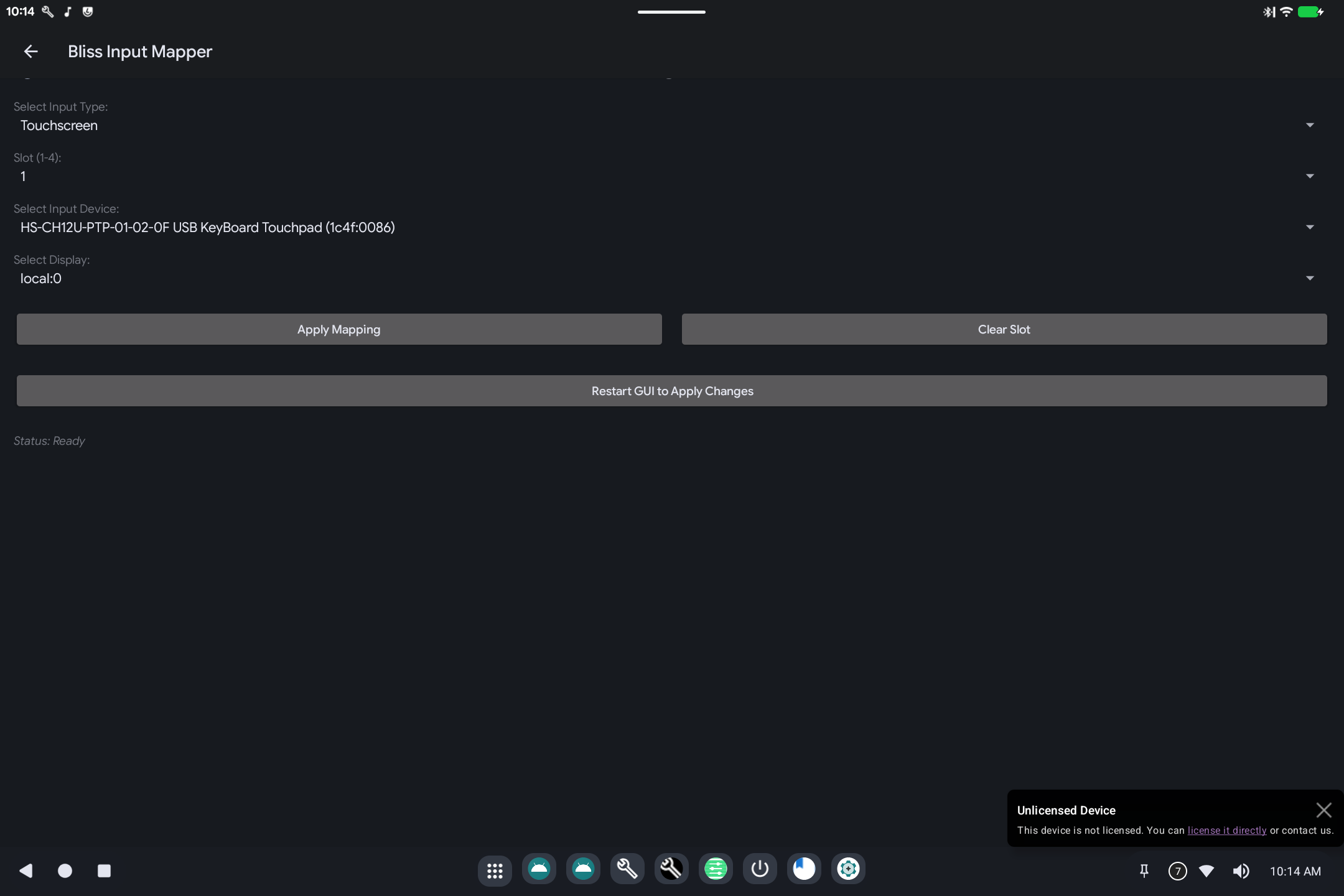
Touch Mapper tells Android which touchscreen, stylus, mouse, or keyboard belongs to which screen, and can flip axes when a panel is mounted upside-down.
Open it from Settings (search for Input Mapper or Touch Mapper).
What it is for
On a PC, USB touch panels and extra monitors can get crossed: you tap the tablet and the cursor moves on the HDMI screen. This tool writes the mapping so each digitizer stays on the right display, including after you plug a monitor in.
How to use it
- Select Input Type: usually Touchscreen; also pointer (mouse/touchpad) or keyboard.
- Slot: a numbered slot (1-4 or similar). Use a free slot for each device.
- Select Input Device: pick the hardware from the list (names come from USB).
- Select Display:
local:0is the main (usually built-in) screen. - Tap Apply Mapping.
- If the UI asks, Restart GUI to Apply Changes.
Clear Slot removes that mapping.
If touch is inverted after a rotate, that is also configured here (flip / orientation on the same page when shown). For display size and rotation itself, use Display Mapper.
Related
-
Technical: Touch Mapper