
Display Mapper
Android 16 Lineout. Screenshots and steps on these pages were taken on Bass: Lineout (Lineage 23.2 / Android 16). On Android 14 (Lineage 21.0) the same tools can look different, sit in a different Settings place, or be missing from that image entirely.
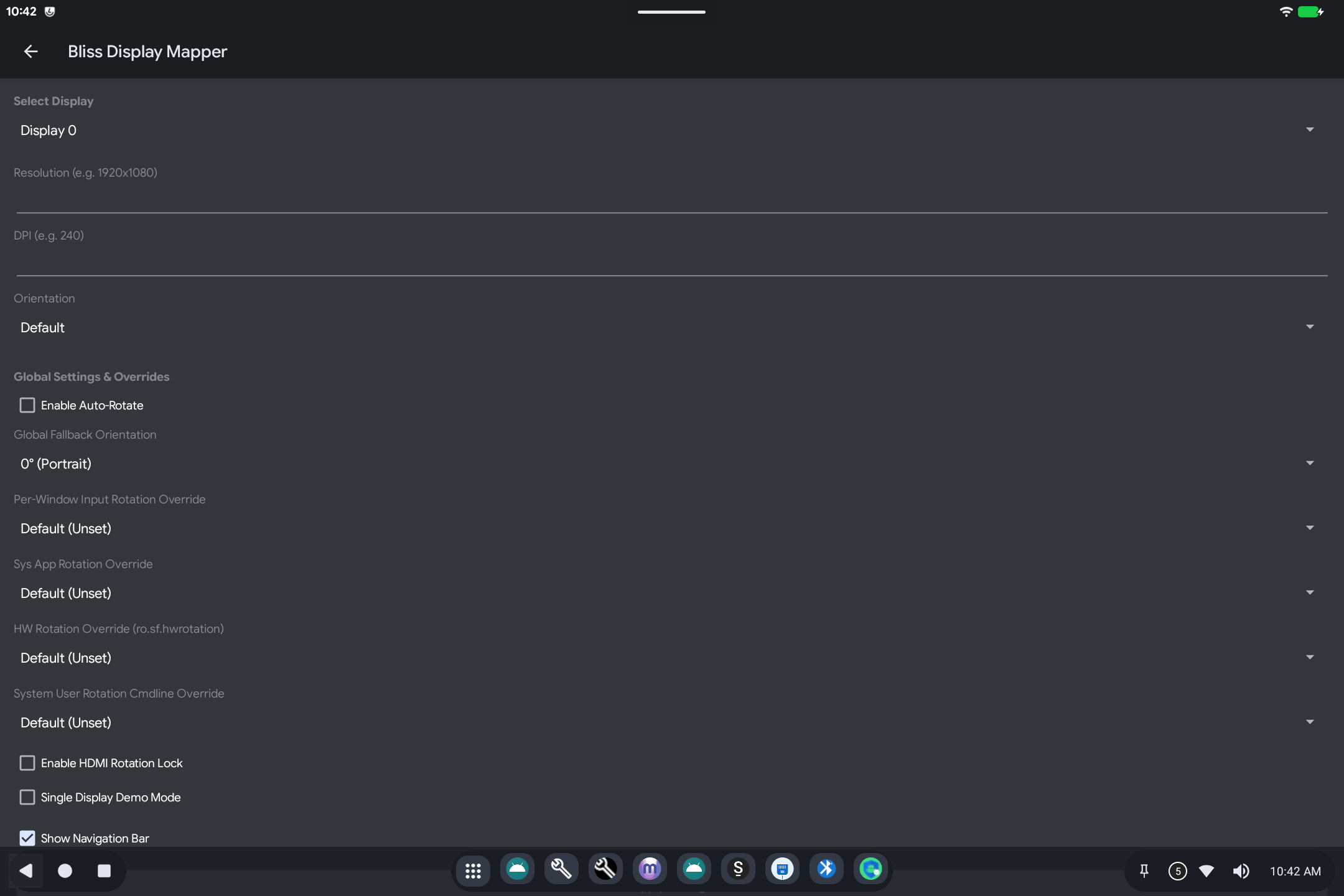
Display Mapper controls resolution, density (how large things look), and rotation for the built-in panel and extra monitors.
Open it from Settings (search for Display Mapper or Bliss Display Mapper).
What it is for
PC panels and HDMI monitors often need a different size or rotation than Android guessed. This screen lets you set that per display.
How to use it
- Select Display:
Display 0is usually the built-in screen;Display 1is often HDMI/USB-C. - Resolution: for example
1920x1080. Leave blank to keep the default. - DPI: higher numbers make text and icons larger. Leave blank for default.
- Orientation: lock landscape/portrait, or leave Default.
- Show Navigation Bar: the Back / Home / Recents bar. Uncheck only if you have another way to go Home (for example SmartDock).
- Apply / save if the screen offers it, then check the display. Some rotation locks need a moment after you plug in a monitor.
Leave Single Display Demo Mode and the advanced rotation overrides alone unless a second screen is stuck the wrong way and the simple Orientation menu did not fix it.
Related
-
Touch Mapper if the picture rotated but touch did not
-
Technical: Display Mapper